

Learn the eye status system, media sharing, and chat features
Video: Messaging Like a Pro Replace this with YouTube embed when video is ready.
Message Status Indicators (Eye System)
Tr3sPass uses a unique eye-based indicator system to track your message delivery and read status — different from the typical checkmarks you see in other apps.
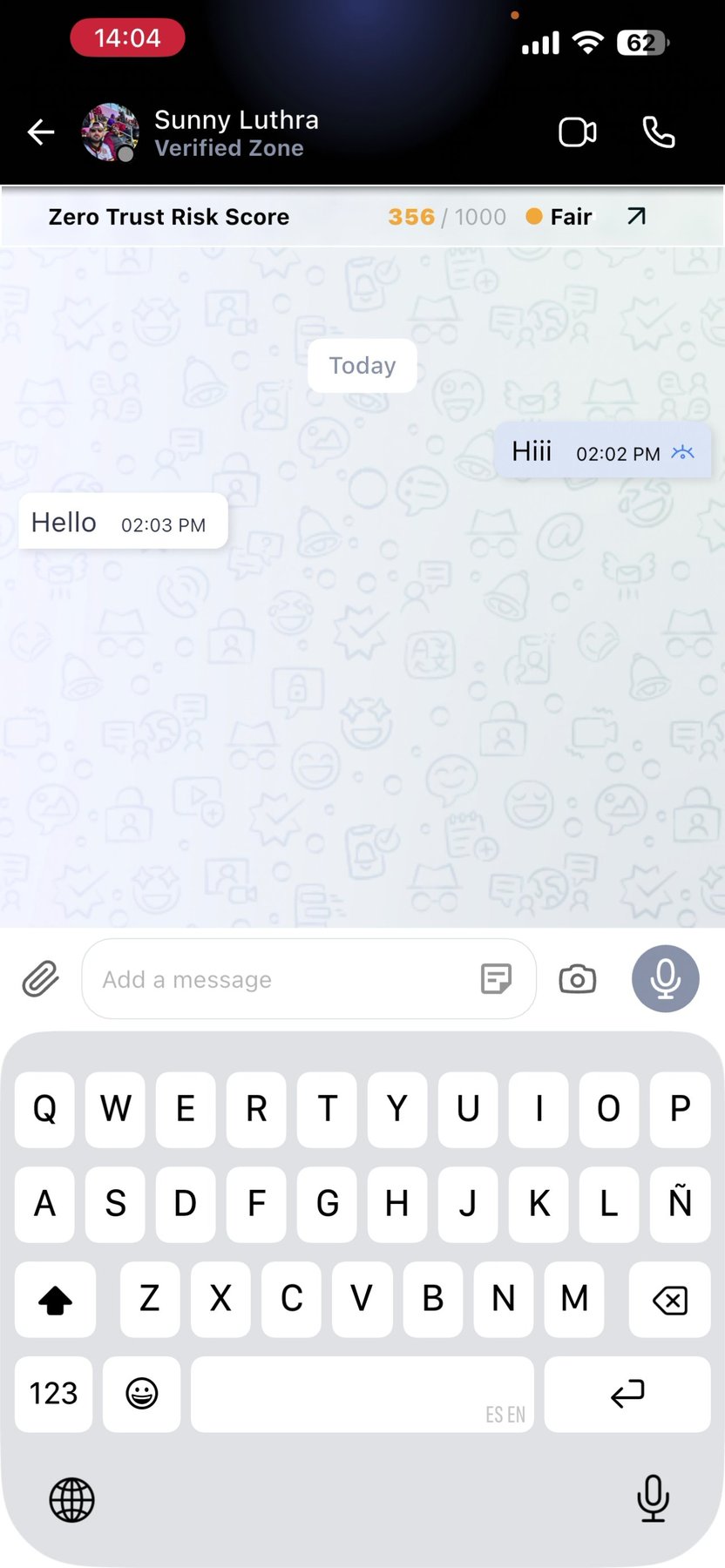
Black Closed Eye
Your message has been sent but not yet received by the recipient. This could mean they're offline or have connectivity issues.
Red Open Eye
Your message has been received on their device but not yet read. They have the message but haven't opened the conversation.
Blue Open Eye
Your message has been read. The recipient has opened the conversation and seen your message.
Why eyes instead of checkmarks?
The eye system provides a more intuitive visual metaphor — closed means unseen, open means seen, and the color indicates the stage of delivery.
Message Info
Get detailed information about any message you've sent.
How to view:
- Tap and hold on any message you sent
- Select "Message Info"
Information shown:
- Exact time the message was sent
- Time the message was delivered
- Time the message was read
- In group chats: who has read your message and when
Sending Media and Files
Share rich content in your conversations beyond just text.
Images
- Send photos from your gallery
- Take new photos directly from the camera
- Multiple images can be sent at once
Videos
- Share video clips from your device
- Record and send new videos
Location
- Share your current GPS location
- Send any location from the map
- Recipients can tap to open in their maps app
Documents
- Send files of any type (PDF, Word, Excel, etc.)
- No file type restrictions
GIFs
- Access built-in GIF library
- Search for the perfect reaction
Important: For the first two messages in a new conversation, you can only send text. Media sharing becomes available after the initial text-based exchange. This helps prevent spam and unwanted content from unknown contacts.
Text Formatting
Express yourself with formatted text:
- Bold: Surround text with asterisks like this
- Italic: Surround text with underscores like this
- Strikethrough: Surround text with tildes
like this
Forwarding Messages
Quickly share messages with other contacts or groups.
How to forward:
- Tap and hold the message
- Select "Forward"
- Choose one or more recipients
- Tap Send
You can forward to:
- Individual contacts
- Group chats
- Multiple recipients at once
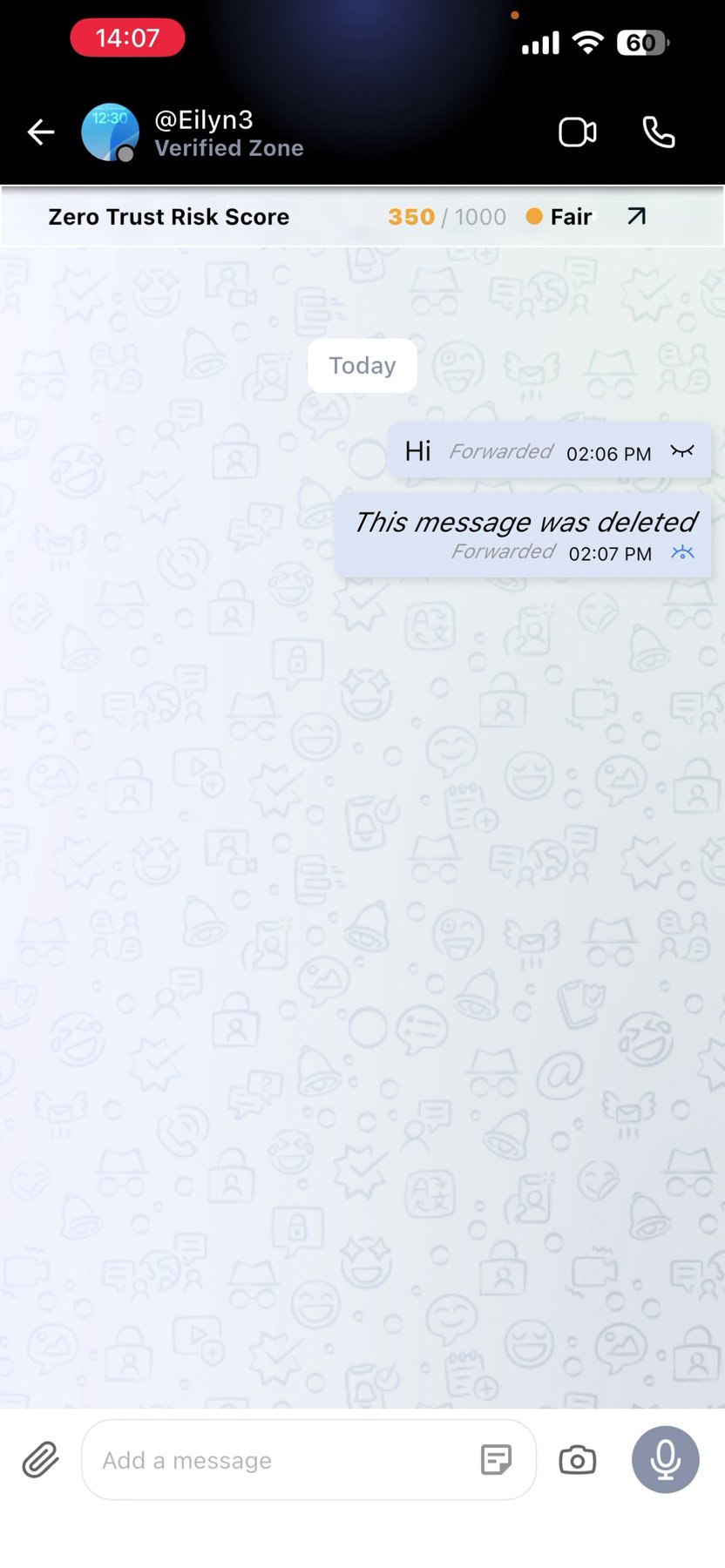
Forwarded messages are labeled so recipients know the content was forwarded.
Deleting Messages
Control your message history with two deletion options.
Delete for Yourself
- Removes the message from your chat view only
- The recipient still sees the message
- Useful for cleaning up your own conversation history
Delete for Everyone
- Unsends the message for all participants
- Recipients see "This message was deleted"
- Works only for messages you sent
- Time limit may apply for older messages
How to delete:
- Tap and hold the message
- Select "Delete"
- Choose "Delete for me" or "Delete for everyone"
Voice Messages
Send audio messages when typing isn't convenient.
How to send:
- Tap and hold the microphone icon
- Speak your message
- Release to send (or slide to cancel)
Playback:
- Recipients can play at normal or increased speed
- Progress bar shows playback position
Replying to Specific Messages
Reference a specific message in your reply for context.
How to reply:
- Tap and hold the message you want to reply to
- Select "Reply"
- Type your response
- Send
Your reply will show the original message above your response, making conversation threads easy to follow.
Copying Text
Copy any text message to your clipboard.
How to copy:
- Tap and hold the message
- Select "Copy"
- Paste anywhere on your device
Next Steps
Now that you understand chat features:
- 3.5 - Contact Profiles & ZTRS: Learn how to verify who you're talking to
- 3.6 - Messaging Features: Explore voice calls, video calls, and groups