

See phone sync, search, and QR code methods in action
Video: 3 Ways to Add Contacts Replace this with YouTube embed when video is ready.
Method 1: Sync from Your Phone Contacts
The fastest way to find people you already know on Tr3sPass.
How it works:
- Ensure you've granted Tr3sPass access to your contacts
- Tr3sPass automatically identifies contacts who have the app
- Matching contacts appear in your "Contacts" list
- Tap any contact to start a conversation
What happens behind the scenes:
- Your phone contacts are securely processed
- Tr3sPass checks phone numbers and emails against existing users
- Only mutual matches are shown (both parties must have each other's info)
- Your contact list is never shared or stored unencrypted
Best for:
- Getting started quickly
- Finding friends and family already using Tr3sPass
- Building your initial contact list
Method 2: Search by Username, Phone, or Email
Find anyone on Tr3sPass without needing to have them in your phone contacts.
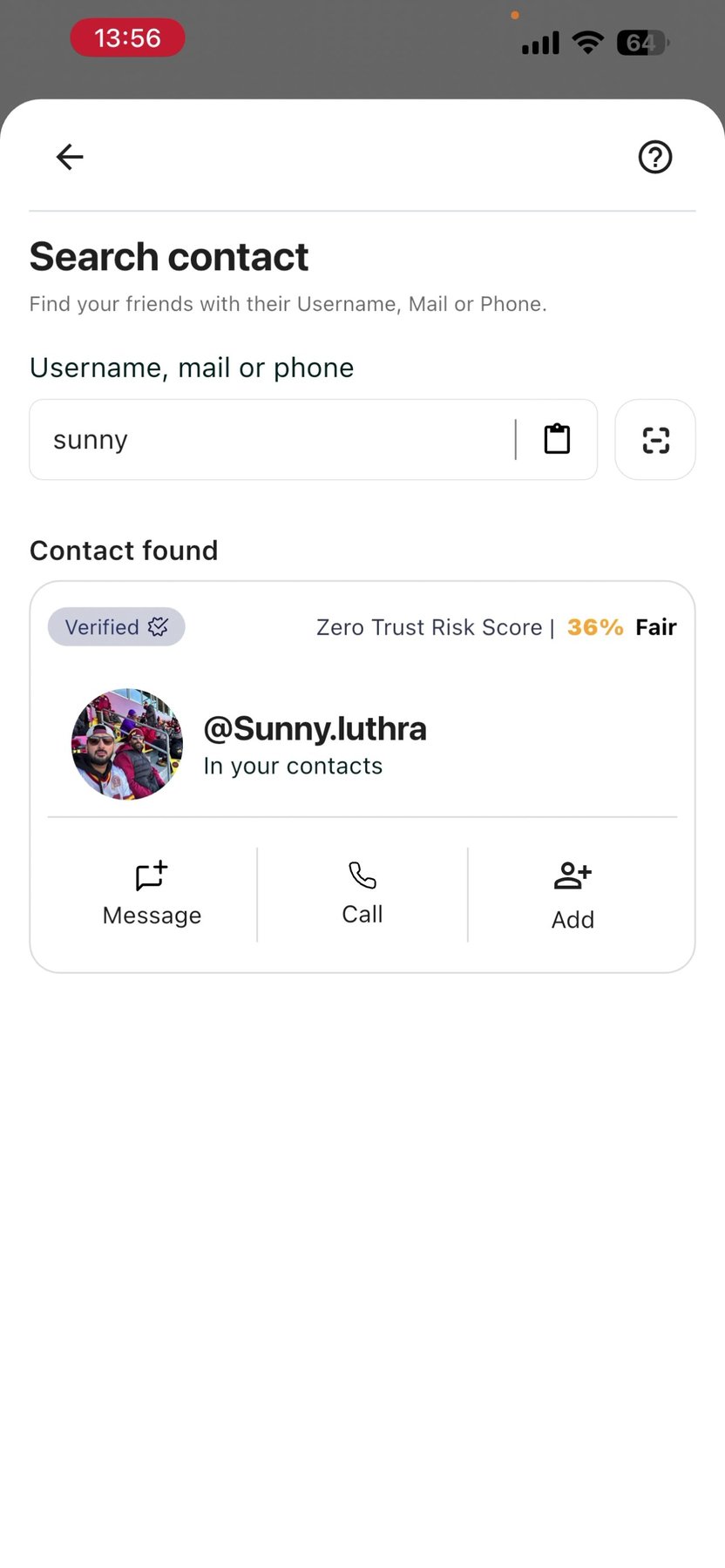
How to search:
- Tap the search icon
- Enter one of the following:
- Username (e.g., @johndoe)
- Phone number (with country code)
- Email address
- View matching results
- Tap a result to view their profile
- Send a contact request or start chatting
Search tips:
- Usernames are unique — if you know someone's exact username, you'll find them instantly
- Phone and email searches only work if the user has added and verified that information
- Search respects privacy settings — users who have restricted discoverability won't appear
Best for:
- Connecting with new professional contacts
- Finding people when you only have their email
- Adding contacts from social media or business cards
Method 3: QR Code Scanning
Instantly connect with someone in person by scanning their unique Tr3sPass QR code.
How to share your QR code:
- Tap your profile icon
- Select "My QR Code"
- Show the code to the other person
How to scan someone's QR code:
- Tap the search icon
- Select "Scan QR Code"
- Point your camera at their code
- Confirm the connection
Why QR codes?
- No need to spell out usernames or exchange phone numbers
- Instant, error-free connection
- Perfect for networking events and meetings
- Works even if you want to keep your phone number private
Best for:
- In-person meetings and events
- Networking situations
- Quick connections without sharing personal details
- Conference and trade show contacts
Privacy and Discoverability
Each search method respects the privacy settings users have configured. This means:
If someone can't be found:
- They may have restricted their discoverability settings
- Their phone number or email may not be verified
- They may be using Anonymous Zone (not searchable by design)
Your discoverability:
- You control who can find you in Settings → Privacy
- You can limit searches to contacts only, verified users, or disable entirely
- Anonymous Zone accounts are never discoverable via search
See 3.8 - Privacy Settings for complete control over your discoverability.
Managing Your Contacts
Once you've added contacts, you can:
View contact profile: Tap their name to see verification level, ZTRS score, and zone
Start a conversation: Tap to open a chat
Block a contact: Access from their profile menu (they won't be notified)
Remove a contact: Delete from your contacts list
Next Steps
Now that you know how to find people:
- 3.4 - Chat Features: Learn about messaging capabilities
- 3.5 - Contact Profiles & ZTRS: Understand how to read trust indicators
- 3.8 - Privacy Settings: Control who can find you